
Looking to stream to various platforms at the same time?
That’s where Streamyard comes in.
Want to know more?
- StreamYard is the #1 rated live stream software on G2. Here's why:
- Easy live streaming and recording
- Multistreaming to many platforms at once
- Easily bring in guests
- On-brand and professional streams
- Interact with viewers and show comments on screen
What do I think about Streamyard?
I have been using Streamyard to stream into LinkedIn for my LinkedIn Lives for a couple of years now. It is simple to use, but has such a variety of tools.
If you are streaming live or preparing video content Streamyard is a great tool – simple to start, as sophisticated as you want to get.
I was apprehensive at first, so started on their free plan and upgraded to Core later. Have a look at the free account and then decide how you want to use it. If you are streaming into LinkedIn you need a third party tool for the LinkedIn Lives, Streamyard I found the easiest.
How to livestream in LinkedIn?
These are the steps I take:
- I set up a LinkedIn Live in LinkedIn
- Then I log on to Streamyard
- Click set up new stream
- Select LinkedIn (and any other platforms)
- Streamyard then gives me a drop down list of my future LinkedIn events and I select the right one and Streamyard pulls through all the details automatically.
- After entering the studio, I upload my slides and check them through - occasionally I have to edit a slide if the text has moved and been cut off. But the whole process is normally less than 5 minutes from set-up to being ready to go live!
Other advantages
Being able to download gives me content for my website too - or snippets for future social posts.
You can download just the audio if you wish, for a ready made podcast.
I can record videos without streaming - great if you want to record training courses. Or if you want to send a prospect a little video specific to them.
Streamyard are very fair - recently Streamyard changed what was offered in each package by adding new items - NO increase in fees, unlike many other software providers out there.
The irks
One thing that is a little irksome is that Facebook keeps changing their requirements, but Streamyard will help you through those changes, even though it's not your, or Streamyard's, fault.
Instagram is a little challenging as Instagram insists that you manually go live in Instagram, but YouTube, LinkedIn, Facebook all autostart in the relevant platform.
Some screenshots for you
Please note I use a dark profile, if you find this difficult to use, there is the light profile (white background) available too.
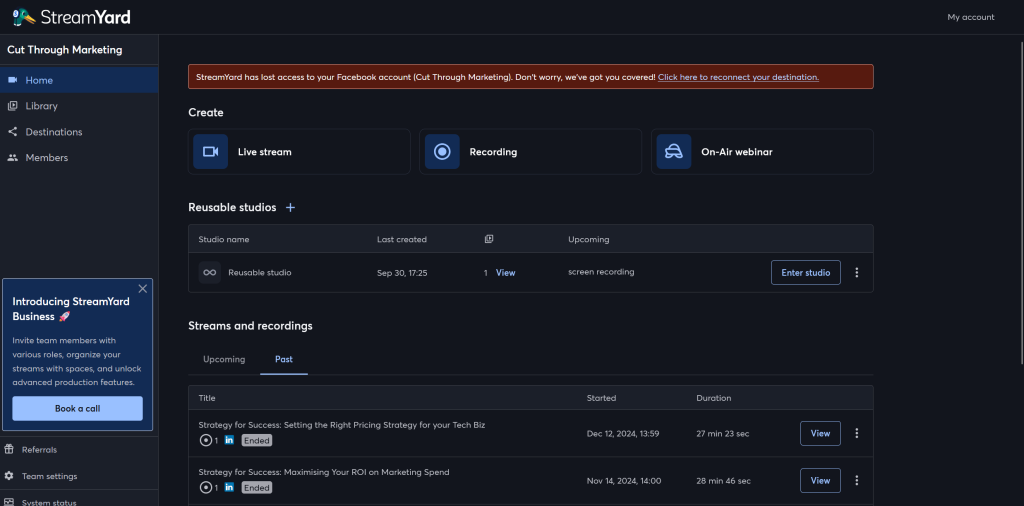
Below is the Streamyard dashboard that you go to when logged in.
You can see the alert re Facebook (what did I say above?), below that the options for creation. Core doesn't have the on-air webinar included, so I have not used that.
The reusable studio is great if you want to keep adding to something.
I don't have any upcoming streams so have selected Past - to download just click the 3 dots at the end.
The studio
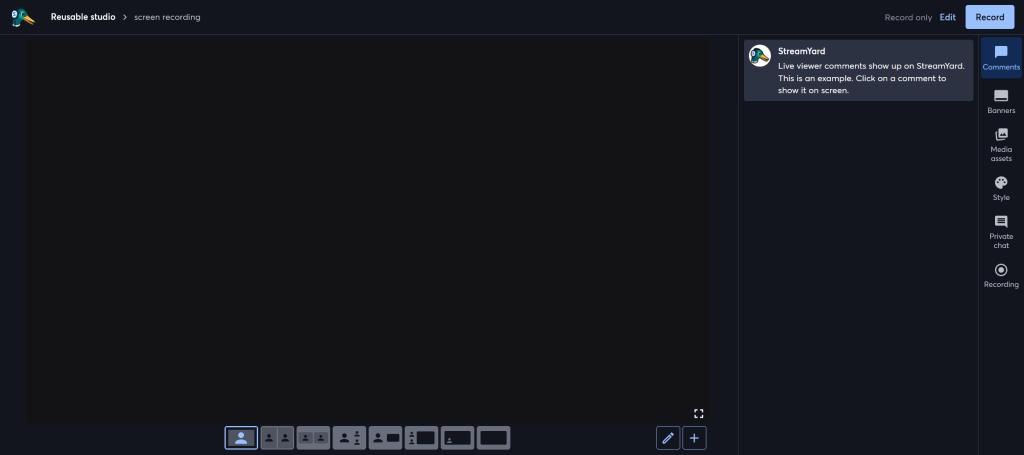
At the base of the screen you can see various layouts available - single person, multiple people in various formats, large person smaller graphics, multiple people showing against a graphic, speaker overlaid on the presentation, or if you're having a bad hair day, just the presentation.
On the right hand side you have the buttons which open in the right hand column.
Comments - great as you can see them pop up as you are speaking, and if you click on one it will pop up on the screen.
Banners - you may have a specific URL or booking reference that you want to refer to - that can easily be done as a banner under your speaker.
Media assets - want to run some pre-recorded video as part of your session - this is where to go.
Style - you can upload your logo, brand colours specified as hex, determine the shape of buttons and all kinds of things.
Private chat - with speakers sitting in the green room
As this is in the reusable studio the button at the top starts recording, in the live studio it says Go Live.
Uploading presentations
I could stream directly from Canva, but I tend to download into powerpoint, tweak a couple of things and then upload into Streamyard. That way I am only relying on one piece of software not two when I am live streaming.
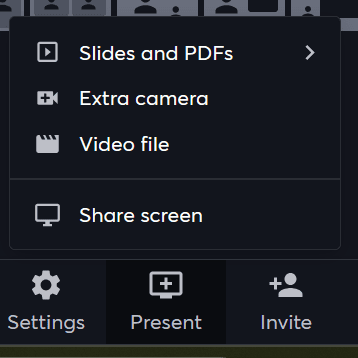
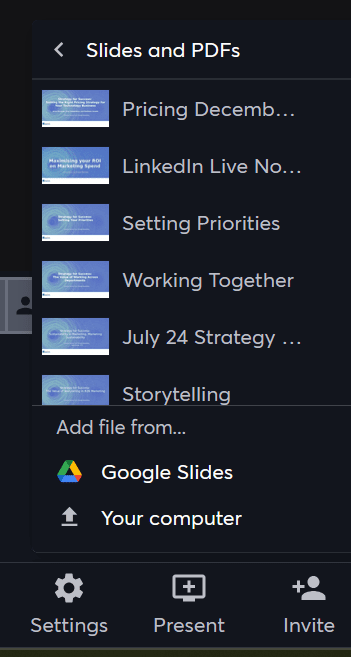
The snippet on the left is the what you see when you click present. Worth mentioning though is the invite button for additional speakers.
The snippet on the right, shows documents already uploaded, plus how you can upload from Google or your computer.
For those you like the tech specs here is the nitty gritty:
- 10 people on screen
- Logos and lower thirds
- Multistream to up to 8 destinations
- Stream pre-recorded clips
- On screen comments
- Full HD (1080p)
- Green screen
- Downloadable recordings
- Custom RTMP destinations
- Screen sharing
- 24/7 support
- Separate audio files
- Custom banners, backgrounds, and overlays
- 7 video layout templates